What You'll Learn in This Lecture
👇 What You'll Learn in This Video 👇
- ✨ What is HTML? - We'll break down the definition of HyperText Markup Language and explain why it's the backbone of every website on the internet.
- ✨ Setting Up Your Editor - A step-by-step guide on how to download and install VS Code, the most popular code editor in the world.
- ✨ HTML Structure - Learn to create headings (h1 to h6) and paragraphs (p) to build a logical document.
- ✨ Organizing Content - Master ordered and unordered lists (ol, ul) to group related items.
- ✨ The Power of Links - Discover the anchor tag (a) and how to link to other pages.
- ✨ Adding Visuals - Learn to embed images (img) to make your page more engaging.
- ✨ Formatting Your Page - Understand how to use line breaks (br) and horizontal rules (hr) to control spacing.
What is HTML?
HTML (HyperText Markup Language) is the standard markup language for creating web pages. It describes the structure of a web page.
HTML : Hyper Text Markup Language
HTML stands for HyperText Markup Language. It is the standard language used to create and structure the content of a webpage.
- HyperText: This refers to the ability to create links that connect web pages to one another, making the web a connected "web" of information.
- Markup Language: This means you use "tags" to surround your content, giving that content meaning and structure. You are "marking up" a plain text document.
First Website: https://info.cern.ch/hypertext/WWW/TheProject.html
Install Required Software:
1. Install Visual Studio Code
This is a free piece of software from Microsoft that you will use to write your code.
https://code.visualstudio.com/
2. Install Visual Studio Code Extensions
HTML Tags Explained
1: The Heading (<h1> to <h6>)
What it is: Headings are tags used to define titles and subtitles on your page. They are crucial for creating a logical hierarchy and outline for your content.
<h1>Heading 1</h1>
<h2>Heading 2</h2>
<h3>Heading 3</h3>
<h4>Heading 4</h4>
<h5>Heading 5</h5>
<h6>Heading 6</h6>
- <h1>: The most important heading, typically used only once per page for the main title.
- <h2>: A major section heading.
- <h3>: A sub-section heading under an <h2>.
- ...and so on, down to <h6>, the least important heading.
The Purpose: To structure your document in a way that is understandable to both humans and machines (like search engines and screen readers). It is not just for making text big; it is for giving the text structural importance.
2. The Paragraph (<p>)
What it is: The paragraph tag is the most common tag you'll use. It's for grouping sentences and blocks of text together.
The Tag: <p>
The Purpose: To define a distinct paragraph of text. Browsers automatically add a little bit of space before and after a <p> element, separating it from other content. You should not use multiple line breaks; you should use multiple <p> tags.
<p>This is the first paragraph. It contains several sentences about a topic.</p>
<p>This is a second, separate paragraph. The browser will display it with a space between it and the first one.</p>
3: HTML Horizontal Rules
The <hr> tag defines a thematic break in an HTML page, and is most often displayed as a horizontal rule.
The <hr> element is used to separate content (or define a change) in an HTML page:
<p>This is the first topic.</p>
<hr>
<p>This is a completely different topic.</p>
4. The Line Break Tag: <br>
This tag tells the browser, "Stop writing on this line and immediately start on the next one." It's like hitting the Enter key once in a poem or an address.
- Purpose: Creates a single line break.
- Example:
<p>221B Baker Street<br>
London, England</p>
6. List Elements (<ul>, <ol>, <li>)
What it is: These tags are used to create lists. This is a perfect example of nesting.
The Tags:
- <ul>: An Unordered List. It creates a bulleted list.
- <ol>: An Ordered List. It creates a numbered list.
- <li>: A List Item. Each item in either type of list must be wrapped in an <li> tag.
The Purpose: To group related items together in a list format.
Example (Nesting in action):
The <li> elements are nested as children inside the <ul> parent.
<ul>
  <li>Tea Bag</li>
  <li>Water</li>
  <li>Sugar</li>
  <li>Milk</li>
</ul>

<ol>
  <li>First, boil the water in a kettle.</li>
  <li>Add tea bag, sugar and milk into it</li>
  <li>Keep boiling it for 5 minutes </li>
  <li>Serve the tea by pouring it into cup</li>
</ol>
7: The Anchor Tag (<a>)
What it is: The Anchor tag is what makes the web "hypertext." It is used to create a hyperlink to another webpage, a file, or a location within the same page.
The Tag: <a>
The Purpose: To make text (or an image) clickable, allowing users to navigate. It requires an attribute called href (hypertext reference) to specify the destination URL.
<a href="https://www.coderarmy.in/">Vist Coder Army</a>
HTML Links - The target Attribute
By default, the linked page will be displayed in the current browser window. To change this, you must specify another target for the link.
The target attribute specifies where to open the linked document.
The target attribute can have one of the following values:
- _self - Default. Opens the document in the same window/tab as it was clicked
- _blank - Opens the document in a new window or tab
8. The Image Tag (<img>)
What it is: The Image tag is a self-closing tag used to embed an image onto your page.
The Tag: <img>
The Purpose: To display a visual image. It requires two main attributes:
- src (source): The path or URL to the image file. This is mandatory.
- alt (alternative text): A description of the image. This is vital for accessibility (screen readers for the visually impaired will read this out) and for when the image fails to load.
<img src="https://cdn.britannica.com/16/234216-050-C66F8665/beagle-hound-dog.jpg" height="300px" width="300px" alt="This is Dog Photo">
Basic HTML Structure
<!DOCTYPE html>
<html>
<head>
    <title>Page Title</title>
</head>
<body>
    <h1>My First Heading</h1>
    <p>My first paragraph.</p>
</body>
</html>
HTML Elements
HTML elements are the building blocks of HTML pages. Each element is represented by tags.
HTML5 Document Structure
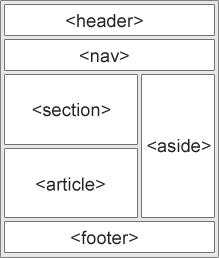
Image source: W3Schools - Showing HTML5 semantic structure
Common HTML Tags
| Tag | Description |
|---|---|
| <html> | Defines the root of an HTML document |
| <head> | Contains meta information about the document |
| <body> | Contains the visible page content |
| <h1> to <h6> | Defines HTML headings |
| <p> | Defines a paragraph |
| <a> | Defines a hyperlink |
| <img> | Defines an image |
| <ul>, <ol>, <li> | Defines lists |
| <div> | Defines a division or section |
| <span> | Defines an inline section |
| <header> | Defines a header for a document or section (HTML5) |
| <footer> | Defines a footer for a document or section (HTML5) |
| <section> | Defines a section in a document (HTML5) |
| <article> | Defines an article (HTML5) |
HTML Attributes
Attributes provide additional information about HTML elements. They are always specified in the start tag.
Example: <a href="https://www.example.com">Visit Example.com</a>
HTML Video Tutorials
Watch these videos to reinforce what you've learned about HTML:
UTV HTML Tutorial
Watch UTV HTML Tutorial on YouTube
Next Lecture
In the next lecture, we'll cover text formatting and links in HTML.